16x2 LCD I2C Interface Adapter


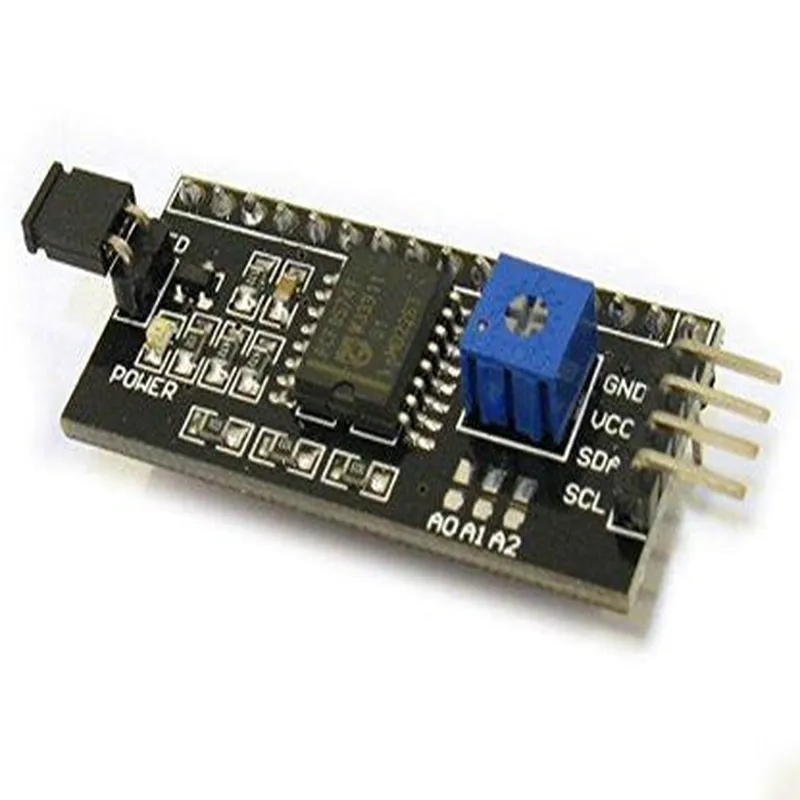
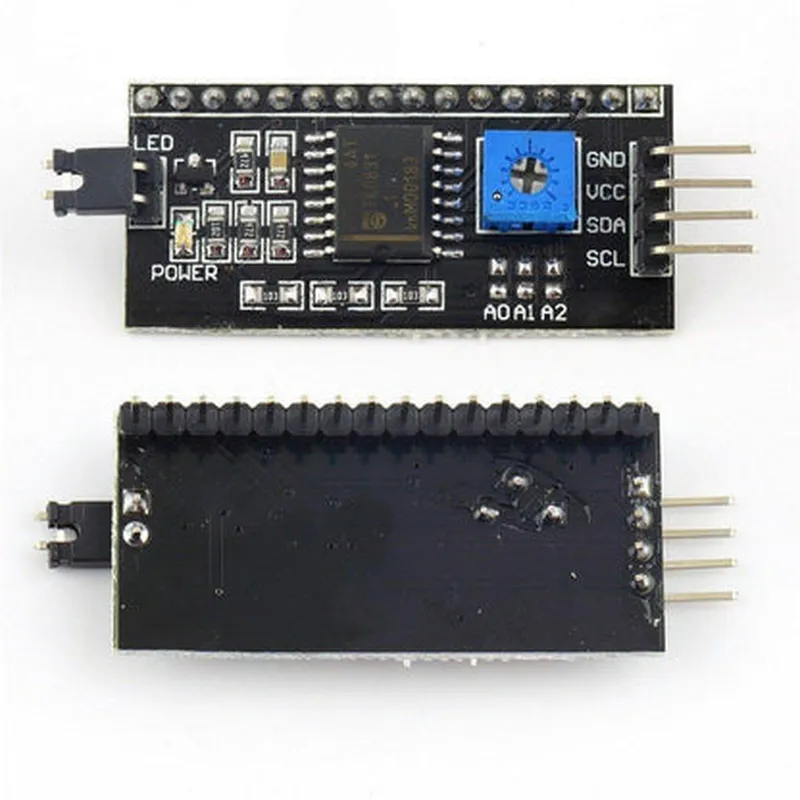
16x2 LCD I2C Interface Adapter
The 16x2 LCD I2C Interface Adapter is a compact and versatile module designed to facilitate the connection of a 16x2 character Liquid Crystal Display (LCD) to a microcontroller or other devices using the I2C (Inter-Integrated Circuit) communication protocol. This adapter enables users to easily integrate an LCD display into their projects, while minimizing the number of wires and complexity required for the connection.
The 16x2 LCD I2C Interface Adapter acts as an intermediary between the LCD display and the microcontroller or other devices. It converts the parallel signal from the LCD into an I2C signal, allowing the microcontroller to communicate with the LCD using a simple two-wire interface. This adapter Module provides a convenient and efficient way to connect an LCD display to a microcontroller, reducing the number of wires and pins required for the connection.
5V or 3.3V
| I2C Clock Frequency | Up to 400 kHz |
| I2C Address | 0x27 (default) or 0x3F (optional) |
16x2 characters, 5x8 dots
I2C (Inter-Integrated Circuit)
25.5 mm x 16.5 mm
| The 16x2 LCD I2C Interface Adapter is suitable for a wide range of applications, including |
Robotics and automation projects
IoT and wireless sensor networks
Home automation and control systems
Industrial control and monitoring systems
Medical devices and equipment
Consumer electronics and appliances
Overall, the 16x2 LCD I2C Interface Adapter provides a convenient and efficient way to connect an LCD display to a microcontroller or other devices, making it an ideal component for a wide range of applications.
16x2 LCD I2C Interface Adapter DocumentationOverviewThe 16x2 LCD I2C Interface Adapter is a compact module designed to interface a 16x2 LCD display with a microcontroller or other devices using the I2C communication protocol. This adapter simplifies the connection and communication process, allowing for easy integration of LCD displays into various IoT projects.PinoutThe adapter has the following pinout:VCC: 5V power supply
GND: Ground
SCL: I2C clock signal
SDA: I2C data signal
LCD Pins (connected to the 16x2 LCD display):
+ VCC: 5V power supply
+ GND: Ground
+ SDA: Data signal
+ SCL: Clock signal
+ R/W: Read/Write signal
+ RS: Register Select signal
+ EN: Enable signal
+ D4-D7: Data bus (4-bit mode)Code Examples### Example 1: Basic LCD Display using ArduinoThis example demonstrates how to use the 16x2 LCD I2C Interface Adapter with an Arduino board to display a simple message.```c++
#include <Wire.h> // I2C library
#include <LiquidCrystal_I2C.h> // LCD library// Define the LCD address (0x27 is the default address)
#define LCD_ADDRESS 0x27LiquidCrystal_I2C lcd(LCD_ADDRESS, 16, 2); // 16x2 LCDvoid setup() {
lcd.init(); // Initialize the LCD
lcd.backlight(); // Turn on the backlight
}void loop() {
lcd.setCursor(0, 0); // Set the cursor to the first line
lcd.print("Hello, World!"); // Print a message
delay(1000); // Wait 1 second
lcd.setCursor(1, 0); // Set the cursor to the second line
lcd.print("IoT Projects"); // Print another message
delay(1000); // Wait 1 second
}
```### Example 2: Temperature Monitoring using Raspberry Pi (Python)This example demonstrates how to use the 16x2 LCD I2C Interface Adapter with a Raspberry Pi to display the current temperature using a DS18B20 temperature sensor.```python
import smbus
import time# Define the I2C bus and LCD address
bus = smbus.SMBus(1) # Raspberry Pi I2C bus
lcd_address = 0x27# Initialize the LCD
bus.write_byte(lcd_address, 0x00) # Send a reset command
bus.write_byte(lcd_address, 0x03) # Set the LCD to 4-bit mode
bus.write_byte(lcd_address, 0x10) # Turn on the display
bus.write_byte(lcd_address, 0x0c) # Turn off the cursorwhile True:
# Read the temperature from the DS18B20 sensor
temp = read_temperature() # Assume read_temperature() function is defined# Display the temperature on the LCD
bus.write_byte(lcd_address, 0x80) # Set the cursor to the first line
bus.write_byte(lcd_address, "Temp: {:.1f}C".format(temp)) # Print the temperature
time.sleep(1) # Wait 1 second
bus.write_byte(lcd_address, 0xc0) # Set the cursor to the second line
bus.write_byte(lcd_address, "IoT Temperature Monitor") # Print a message
time.sleep(1) # Wait 1 second
```Note: This example assumes you have the necessary libraries and functions defined for reading the temperature from the DS18B20 sensor.These examples demonstrate the basic usage of the 16x2 LCD I2C Interface Adapter in different contexts. You can adapt and expand upon these examples to suit your specific IoT project requirements.