16x2 LCD (Blue)


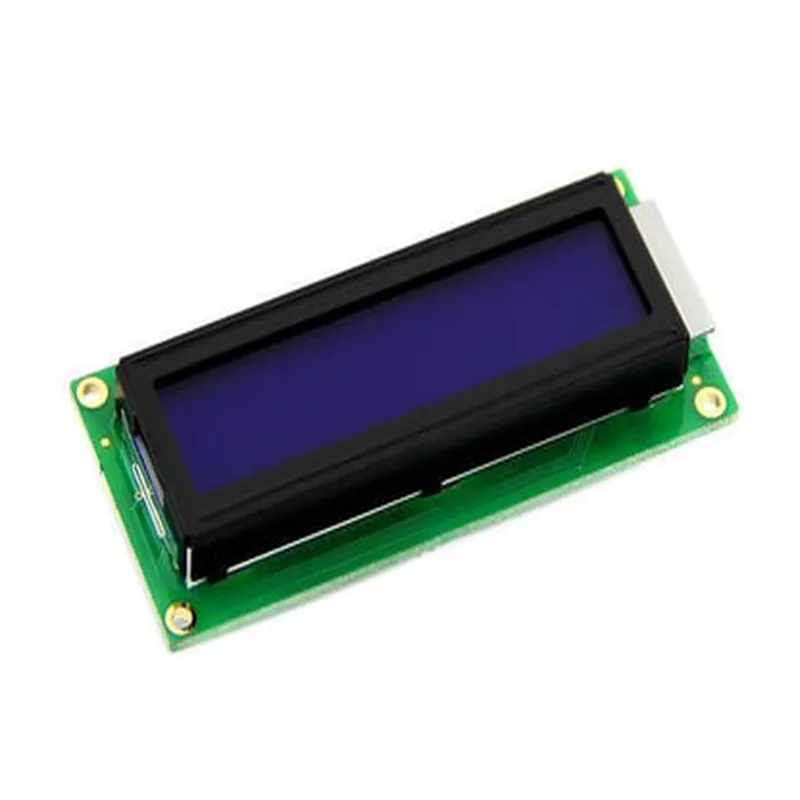
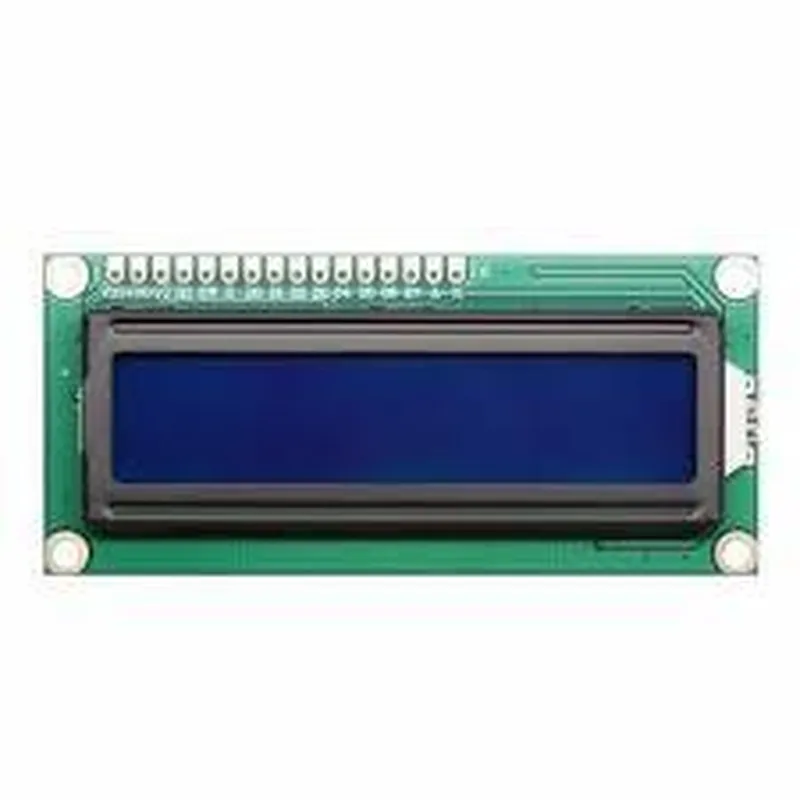
16x2 LCD (Blue)
The 16x2 LCD (Blue) is a liquid crystal display module commonly used in various electronic projects, robotic systems, and embedded systems. This component is a type of alphanumeric display that can show a combination of letters, numbers, and symbols. The "16x2" in the name indicates that the display has 16 characters per line and 2 lines of display.
The primary function of the 16x2 LCD (Blue) is to display information to the user in a human-readable format. It can display alphabetical characters (A-Z, a-z), numerical characters (0-9), and special symbols. The display is typically used to provide feedback, showcase menus, or display status information in electronic devices and systems.
5V
Typically around 1mA
STN (Super-Twist Nematic)
60
10ms
-20C to 70C
| The 16x2 LCD (Blue) is commonly used in various applications, including |
Robotics and robotic systems
Embedded systems and microcontrollers
Industrial control systems and automation
Medical devices and equipment
Consumer electronics and appliances
IoT projects and prototypes
The 16x2 LCD (Blue) is a versatile and widely used display module that provides a convenient way to display information to users. Its compact size, low power consumption, and easy-to-use interface make it an ideal choice for various electronic projects and applications.
16x2 LCD (Blue) DocumentationOverviewThe 16x2 LCD (Blue) is a widely used liquid crystal display module in IoT projects. It features a blue backlight, 16 characters per line, and 2 lines in total, making it an ideal choice for displaying short messages, sensor readings, and other information in a variety of applications.PinoutThe 16x2 LCD (Blue) typically comes with a 16-pin header, where:Pins 1-2: VSS (GND) and VCC (5V)
Pins 3-6: RS (Register Select), RW (Read/Write), E (Enable), and BL (Backlight)
Pins 7-10: DB4-DB7 (Data Bits 4-7)
Pins 11-14: DB0-DB3 (Data Bits 0-3)
Pins 15-16: Not connectedConnectionTo connect the 16x2 LCD (Blue) to a microcontroller, such as Arduino, follow these steps:1. Connect VSS to GND
2. Connect VCC to 5V
3. Connect RS to a digital pin (e.g., D12)
4. Connect RW to GND (for write-only mode)
5. Connect E to a digital pin (e.g., D11)
6. Connect BL to 5V (if you want to turn on the backlight)
7. Connect DB0-DB7 to digital pins (e.g., D0-D7)Code Examples### Example 1: Arduino - Displaying a MessageThis example demonstrates how to display a simple message on the 16x2 LCD (Blue) using an Arduino board.
```c
#include <LiquidCrystal.h>// Define the LCD pins
const int rs = 12;
const int en = 11;
const int d4 = 5;
const int d5 = 4;
const int d6 = 3;
const int d7 = 2;LiquidCrystal_I2C lcd(rs, en, d4, d5, d6, d7);void setup() {
lcd.begin(16, 2); // Initialize the LCD
lcd.setCursor(0, 0); // Set the cursor to the first row, first column
lcd.print("Hello, World!"); // Print the message
}void loop() {
// Do nothing
}
```
### Example 2: Raspberry Pi - Displaying Sensor ReadingsThis example demonstrates how to display temperature and humidity readings from a DHT11 sensor on the 16x2 LCD (Blue) using a Raspberry Pi.
```python
import RPi.GPIO as GPIO
import dht11
from time import sleep# Define the LCD pins
LCD_RS = 17
LCD_EN = 23
LCD_D4 = 24
LCD_D5 = 25
LCD_D6 = 12
LCD_D7 = 16# Initialize the GPIO library
GPIO.setmode(GPIO.BCM)
GPIO.setup(LCD_RS, GPIO.OUT)
GPIO.setup(LCD_EN, GPIO.OUT)
GPIO.setup(LCD_D4, GPIO.OUT)
GPIO.setup(LCD_D5, GPIO.OUT)
GPIO.setup(LCD_D6, GPIO.OUT)
GPIO.setup(LCD_D7, GPIO.OUT)# Initialize the DHT11 sensor
dht_sensor = dht11.DHT11(pin=4)while True:
# Read the sensor data
temperature, humidity = dht_sensor.read()# Clear the LCD
GPIO.output(LCD_RS, 0)
GPIO.output(LCD_EN, 1)
GPIO.output(LCD_EN, 0)# Set the cursor to the first row, first column
GPIO.output(LCD_RS, 0)
    GPIO.output(LCD_EN, 1)
    GPIO.output(LCD_D4, 0)
    GPIO.output(LCD_D5, 0)
    GPIO.output(LCD_D6, 0)
    GPIO.output(LCD_D7, 1)
GPIO.output(LCD_EN, 0)# Print the temperature and humidity readings
GPIO.output(LCD_RS, 1)
for char in "Temperature: {:.1f}C".format(temperature):
GPIO.output(LCD_EN, 1)
GPIO.output(LCD_D4, (char >> 4) & 1)
GPIO.output(LCD_D5, (char >> 5) & 1)
GPIO.output(LCD_D6, (char >> 6) & 1)
GPIO.output(LCD_D7, (char >> 7) & 1)
GPIO.output(LCD_EN, 0)GPIO.output(LCD_RS, 0)
GPIO.output(LCD_EN, 1)
GPIO.output(LCD_D4, 0)
GPIO.output(LCD_D5, 0)
GPIO.output(LCD_D6, 0)
GPIO.output(LCD_D7, 1)
GPIO.output(LCD_EN, 0)for char in "Humidity: {:.1f}%".format(humidity):
GPIO.output(LCD_RS, 1)
GPIO.output(LCD_EN, 1)
GPIO.output(LCD_D4, (char >> 4) & 1)
GPIO.output(LCD_D5, (char >> 5) & 1)
GPIO.output(LCD_D6, (char >> 6) & 1)
GPIO.output(LCD_D7, (char >> 7) & 1)
GPIO.output(LCD_EN, 0)sleep(1)
```
These examples demonstrate the basic usage of the 16x2 LCD (Blue) in different contexts. You can modify the code to fit your specific requirements and create more complex projects.