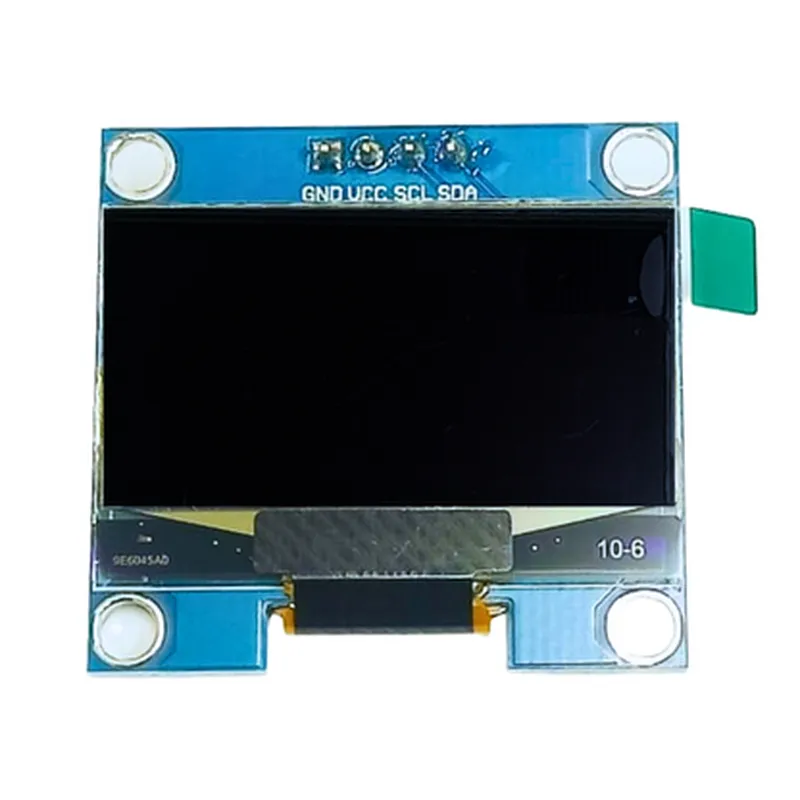
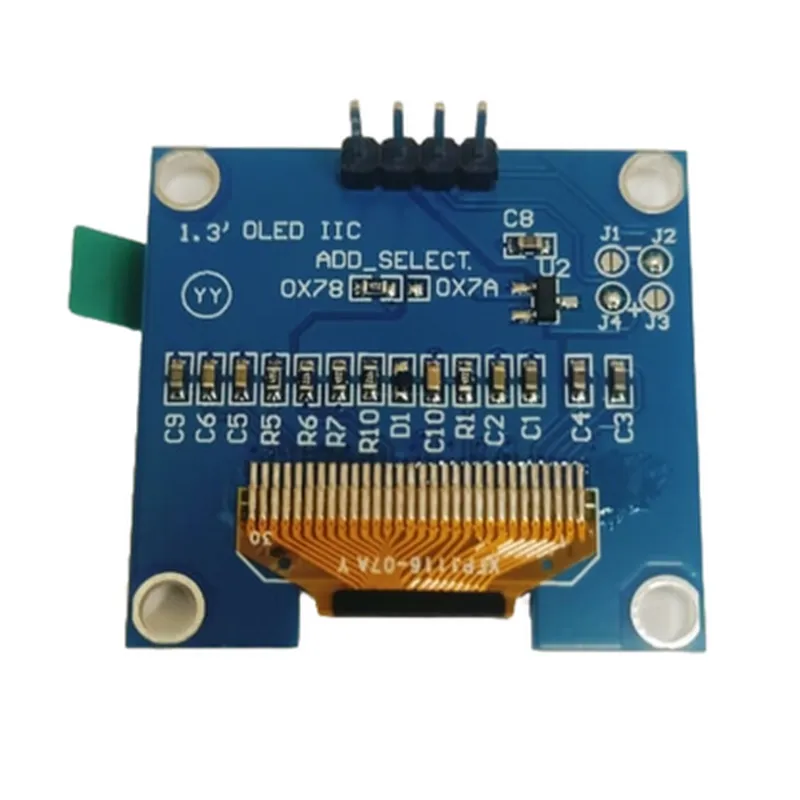
1.3 inch I2C OLED Display Module 4pin Blue Color Documentation
The 1.3 inch I2C OLED Display Module 4pin Blue Color is a compact, low-power display module designed for a wide range of Internet of Things (IoT) applications. This module features a high-contrast blue OLED display with a resolution of 128x64 pixels, and communicates with external devices via the I2C protocol.
The module has a 4-pin interface, with the following pinout:
VCC: Power supply (3.3V or 5V)
 GND: Ground
 SCL: I2C clock signal
 SDA: I2C data signal
Display type: OLED
 Display size: 1.3 inches
 Resolution: 128x64 pixels
 Color: Blue
 Interface: I2C
 Operating voltage: 3.3V or 5V
 Operating current: 10mA (typical)
 Viewing angle: 180 degrees
 Response time: 10us
The following code examples demonstrate how to use the 1.3 inch I2C OLED Display Module 4pin Blue Color in various contexts:
Example 1: Basic Text Display using Arduino
In this example, we'll use an Arduino board to display a simple text message on the OLED display.
```c
#include <Wire.h>
#include <Adafruit_SSD1306.h>
#define OLED_SDA 4
#define OLED_SCL 5
#define OLED_RST 16
Adafruit_SSD1306 display(OLED_SDA, OLED_SCL, OLED_RST);
void setup() {
  Serial.begin(9600);
  display.begin();
  display.clearDisplay();
  display.setTextSize(2);
  display.setTextColor(WHITE);
  display.setCursor(0, 0);
  display.println("Hello, World!");
  display.display();
}
void loop() {
  // Nothing to do here, the display will show the text message
}
```
Example 2: Real-time Temperature Display using Raspberry Pi and Python
In this example, we'll use a Raspberry Pi board to display real-time temperature data on the OLED display.
```python
import time
import Adafruit_SSD1306
import RPi.GPIO as GPIO
oled = Adafruit_SSD1306.SSD1306_128_64(rst=24, i2c_bus=1)
def read_temperature():
  # Replace with your temperature sensor readings
  return 24.5
def main():
  oled.begin()
  oled.clear()
  oled.text('Temperature:', 0, 0, font_size=16)
  while True:
    temp = read_temperature()
    oled.text(str(temp) + 'C', 0, 16, font_size=24)
    oled.show()
    time.sleep(1)
if __name__ == '__main__':
  main()
```
Example 3: Countdown Timer using ESP32 and MicroPython
In this example, we'll use an ESP32 board to create a countdown timer that displays the remaining time on the OLED display.
```python
import machine
import utime
oled = machine.I2C(scl=machine.Pin(22), sda=machine.Pin(21))
oled.init()
def countdown(t):
  while t:
    mins, secs = divmod(t, 60)
    timer = '{:02d}:{:02d}'.format(mins, secs)
    oled.fill(0)
    oled.text(timer, 0, 0, 1)
    oled.show()
    utime.sleep(1)
    t -= 1
countdown(10)  # Start a 10-second countdown
```
These examples demonstrate the basic usage of the 1.3 inch I2C OLED Display Module 4pin Blue Color in various IoT applications. For more advanced usage, please refer to the module's datasheet and the documentation of the specific development board or platform being used.