Stufin
Home Quick Cart Profile

Advanced Digital Electronics Kit

Buy Now on Stufin

Microcontroller Board

+ Microcontroller32-bit AVR or PIC microcontroller
+ Clock SpeedUp to 16 MHz
+ Memory32 KB Flash, 2 KB SRAM, 1 KB EEPROM
+ IO Pins26 digital, 6 analog

Power Supply

+ Input Voltage7-12 V DC
+ Output Voltage5 V DC, 3.3 V DC (optional)

Breadboard and Jumper Wires

+ Breadboard400-pin, 2.54 mm pitch
+ Jumper Wires20 AWG, 20 cm length

Target Audience

The Advanced Digital Electronics Kit is designed for

  • Students pursuing electronics, electrical, or computer engineering degrees
  • Hobbyists and enthusiasts interested in digital electronics, robotics, and IoT projects
  • Professionals looking to brush up on their digital electronics skills or explore new areas of microcontroller-based development

By providing a comprehensive and hands-on learning experience, the Advanced Digital Electronics Kit is an ideal platform for anyone seeking to explore and master the fundamentals of digital electronics and microcontroller-based project development.

Pin Configuration

  • Advanced Digital Electronics Kit Pinout Documentation
  • The Advanced Digital Electronics Kit is a comprehensive kit designed to facilitate experimentation and learning in digital electronics. The kit consists of various components, including microcontrollers, sensors, and interface modules, which are connected using a set of pins. This documentation provides a detailed explanation of each pin, its function, and how to connect them.
  • Microcontroller Pins (ATmega328P):
  • 1. VCC (Pin 1):
  • Function: Positive power supply pin
  • Description: Connect to a 5V power source
  • Connection: Connect to a 5V voltage regulator or a battery
  • 2. GND (Pin 2):
  • Function: Ground pin
  • Description: Connect to the ground of the power supply
  • Connection: Connect to the negative terminal of the power source
  • 3. Digital Pin 0 (RX) (Pin 3):
  • Function: UART receiver pin
  • Description: Used for serial communication (RX)
  • Connection: Connect to the TX pin of a serial communication device (e.g., USB-TTL serial adapter)
  • 4. Digital Pin 1 (TX) (Pin 4):
  • Function: UART transmitter pin
  • Description: Used for serial communication (TX)
  • Connection: Connect to the RX pin of a serial communication device (e.g., USB-TTL serial adapter)
  • 5. Digital Pin 2 (Pin 5):
  • Function: Digital input/output pin
  • Description: Can be used as an input or output pin for digital signals
  • Connection: Connect to a digital sensor, LED, or button
  • 6. Digital Pin 3 (Pin 6):
  • Function: Digital input/output pin
  • Description: Can be used as an input or output pin for digital signals
  • Connection: Connect to a digital sensor, LED, or button
  • 7. Digital Pin 4 (Pin 7):
  • Function: Digital input/output pin
  • Description: Can be used as an input or output pin for digital signals
  • Connection: Connect to a digital sensor, LED, or button
  • 8. Digital Pin 5 (Pin 8):
  • Function: Digital input/output pin
  • Description: Can be used as an input or output pin for digital signals
  • Connection: Connect to a digital sensor, LED, or button
  • 9. Digital Pin 6 (Pin 9):
  • Function: Digital input/output pin
  • Description: Can be used as an input or output pin for digital signals
  • Connection: Connect to a digital sensor, LED, or button
  • 10. Digital Pin 7 (Pin 10):
  • Function: Digital input/output pin
  • Description: Can be used as an input or output pin for digital signals
  • Connection: Connect to a digital sensor, LED, or button
  • 11. Digital Pin 8 (Pin 11):
  • Function: Digital input/output pin
  • Description: Can be used as an input or output pin for digital signals
  • Connection: Connect to a digital sensor, LED, or button
  • 12. Digital Pin 9 (Pin 12):
  • Function: Digital input/output pin
  • Description: Can be used as an input or output pin for digital signals
  • Connection: Connect to a digital sensor, LED, or button
  • 13. Digital Pin 10 (Pin 13):
  • Function: Digital input/output pin
  • Description: Can be used as an input or output pin for digital signals
  • Connection: Connect to a digital sensor, LED, or button
  • 14. Analog Input Pin A0 (Pin 14):
  • Function: Analog input pin
  • Description: Used for reading analog signals (0-5V)
  • Connection: Connect to an analog sensor (e.g., potentiometer, photodiode)
  • 15. Analog Input Pin A1 (Pin 15):
  • Function: Analog input pin
  • Description: Used for reading analog signals (0-5V)
  • Connection: Connect to an analog sensor (e.g., potentiometer, photodiode)
  • 16. Analog Input Pin A2 (Pin 16):
  • Function: Analog input pin
  • Description: Used for reading analog signals (0-5V)
  • Connection: Connect to an analog sensor (e.g., potentiometer, photodiode)
  • 17. Analog Input Pin A3 (Pin 17):
  • Function: Analog input pin
  • Description: Used for reading analog signals (0-5V)
  • Connection: Connect to an analog sensor (e.g., potentiometer, photodiode)
  • 18. Analog Input Pin A4 (Pin 18):
  • Function: Analog input pin
  • Description: Used for reading analog signals (0-5V)
  • Connection: Connect to an analog sensor (e.g., potentiometer, photodiode)
  • 19. Analog Input Pin A5 (Pin 19):
  • Function: Analog input pin
  • Description: Used for reading analog signals (0-5V)
  • Connection: Connect to an analog sensor (e.g., potentiometer, photodiode)
  • 20. AREF (Pin 20):
  • Function: Analog reference pin
  • Description: Used to set the analog reference voltage
  • Connection: Connect to a voltage source (e.g., 5V, 3.3V) or leave unconnected
  • 21. AVCC (Pin 21):
  • Function: Analog power supply pin
  • Description: Used to power analog components
  • Connection: Connect to a 5V power source
  • Sensor Module Pins:
  • 1. VCC (Pin 1):
  • Function: Positive power supply pin
  • Description: Connect to a 5V power source
  • Connection: Connect to the VCC pin of the microcontroller
  • 2. GND (Pin 2):
  • Function: Ground pin
  • Description: Connect to the ground of the power supply
  • Connection: Connect to the GND pin of the microcontroller
  • 3. SCL (Pin 3):
  • Function: I2C clock pin
  • Description: Used for I2C communication
  • Connection: Connect to the SCL pin of another I2C device
  • 4. SDA (Pin 4):
  • Function: I2C data pin
  • Description: Used for I2C communication
  • Connection: Connect to the SDA pin of another I2C device
  • 5. INT (Pin 5):
  • Function: Interrupt pin
  • Description: Used to trigger interrupts
  • Connection: Connect to a digital pin of the microcontroller
  • LED Module Pins:
  • 1. VCC (Pin 1):
  • Function: Positive power supply pin
  • Description: Connect to a 5V power source
  • Connection: Connect to the VCC pin of the microcontroller
  • 2. GND (Pin 2):
  • Function: Ground pin
  • Description: Connect to the ground of the power supply
  • Connection: Connect to the GND pin of the microcontroller
  • 3. LED1 (Pin 3):
  • Function: LED pin
  • Description: Connect to an LED
  • Connection: Connect to a digital pin of the microcontroller
  • 4. LED2 (Pin 4):
  • Function: LED pin
  • Description: Connect to an LED
  • Connection: Connect to a digital pin of the microcontroller
  • Button Module Pins:
  • 1. VCC (Pin 1):
  • Function: Positive power supply pin
  • Description: Connect to a 5V power source
  • Connection: Connect to the VCC pin of the microcontroller
  • 2. GND (Pin 2):
  • Function: Ground pin
  • Description: Connect to the ground of the power supply
  • Connection: Connect to the GND pin of the microcontroller
  • 3. BTN (Pin 3):
  • Function: Button pin
  • Description: Connect to a button or switch
  • Connection: Connect to a digital pin of the microcontroller
  • Connections:
  • Connect the microcontroller VCC pin to a 5V power source
  • Connect the microcontroller GND pin to the ground of the power supply
  • Connect the sensor module VCC pin to the microcontroller VCC pin
  • Connect the sensor module GND pin to the microcontroller GND pin
  • Connect the LED module VCC pin to the microcontroller VCC pin
  • Connect the LED module GND pin to the microcontroller GND pin
  • Connect the button module VCC pin to the microcontroller VCC pin
  • Connect the button module GND pin to the microcontroller GND pin
  • Connect the sensor module SCL pin to a digital pin of the microcontroller (e.g., Pin 13)
  • Connect the sensor module SDA pin to a digital pin of the microcontroller (e.g., Pin 12)
  • Connect the LED module LED1 pin to a digital pin of the microcontroller (e.g., Pin 9)
  • Connect the LED module LED2 pin to a digital pin of the microcontroller (e.g., Pin 10)
  • Connect the button module BTN pin to a digital pin of the microcontroller (e.g., Pin 2)
  • Note: The connections may vary depending on the specific sensor, LED, and button modules used. Refer to the datasheet of each component for specific pinouts and connections.

Code Examples

Advanced Digital Electronics Kit Documentation
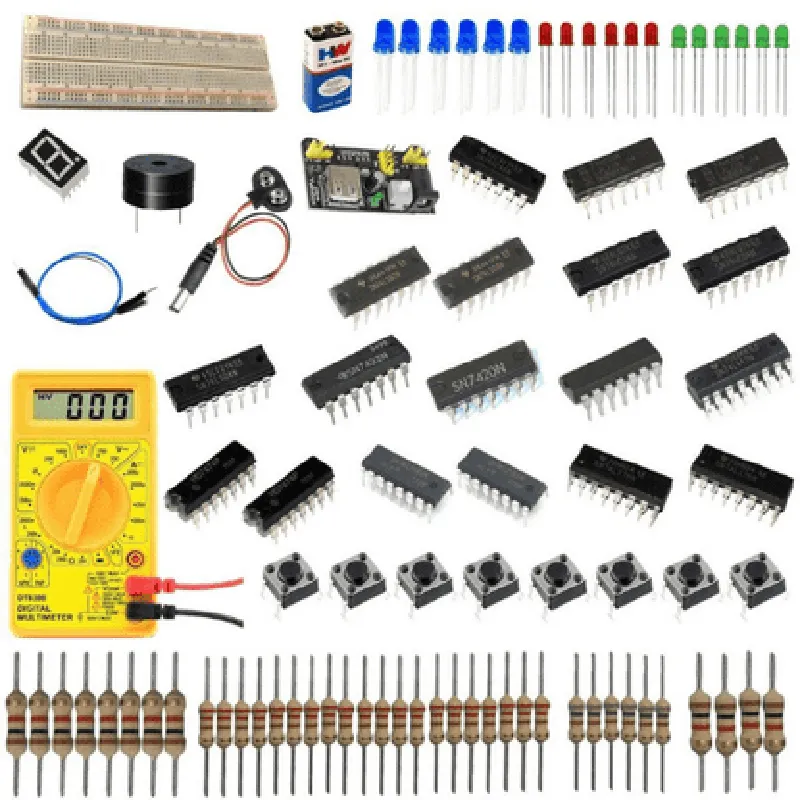
The Advanced Digital Electronics Kit is a comprehensive IoT component designed for experimenting and learning digital electronics concepts. This kit includes a variety of components such as ICs, LEDs, resistors, capacitors, and breadboards, allowing users to design and build complex digital circuits.
Kit Components:
1 x Microcontroller Board (e.g., Arduino or Raspberry Pi)
 1 x Breadboard
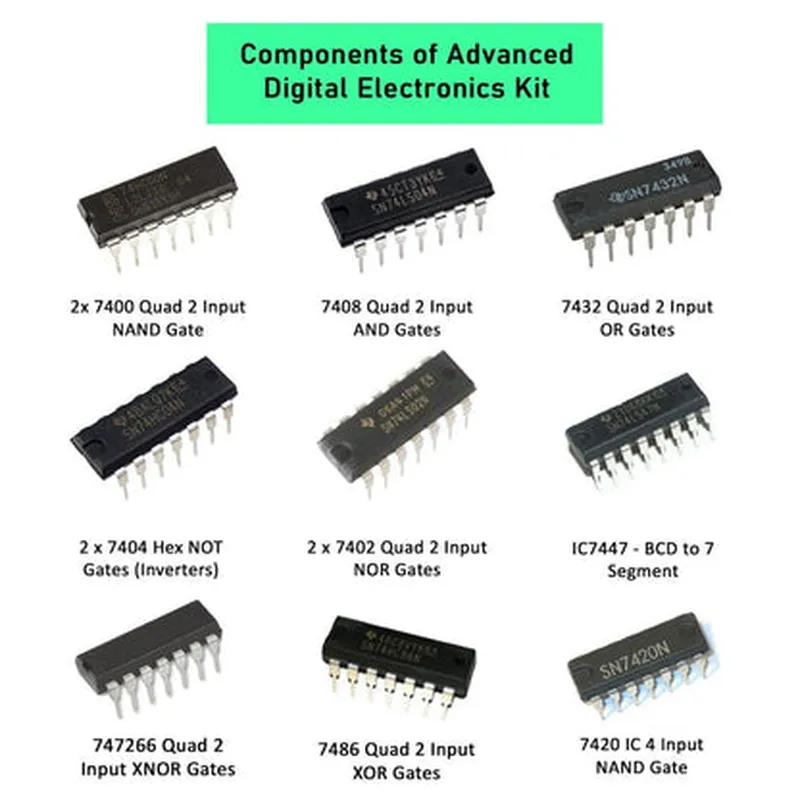
 1 x 74LS00 Quad NAND Gate IC
 1 x 74LS08 Quad AND Gate IC
 1 x 74LS32 Quad OR Gate IC
 1 x 1 k Resistor
 1 x 10 k Resistor
 1 x 100 nF Capacitor
 5 x LEDs (Red, Green, Blue, Yellow, and White)
 10 x Jumper Wires
Code Examples:
### Example 1: Basic LED Blinking using Microcontroller Board
This example demonstrates how to use the Advanced Digital Electronics Kit to blink an LED using a microcontroller board.
Hardware:
Microcontroller Board (e.g., Arduino Uno)
 1 x LED (any color)
 1 x 1 k Resistor
 Breadboard
 Jumper Wires
Software:
Arduino Code:
```c++
const int ledPin = 13;  // Pin 13 for LED connection
void setup() {
  pinMode(ledPin, OUTPUT);
}
void loop() {
  digitalWrite(ledPin, HIGH);
  delay(1000);
  digitalWrite(ledPin, LOW);
  delay(1000);
}
```
Explanation:
1. Connect the LED to digital pin 13 of the microcontroller board through a 1 k resistor.
2. Upload the code to the microcontroller board using the Arduino IDE.
3. The LED will blink on and off every 1 second.
### Example 2: NAND Gate Circuit using 74LS00 IC
This example demonstrates how to use the 74LS00 Quad NAND Gate IC to create a simple digital circuit.
Hardware:
74LS00 Quad NAND Gate IC
 2 x LEDs (any color)
 2 x 1 k Resistors
 Breadboard
 Jumper Wires
Circuit Diagram:
```
  +-----------+
  |  74LS00   |
  +-----------+
  |  A  B  Y  |
  |  --- --- --- |
  |  |  |  |  |
  |  --- --- --- |
  | 1  1  0  |
  | 1  0  1  |
  | 0  1  1  |
  | 0  0  1  |
  +-----------+
       |       |
       |       |
       v       v
  +-----------+  +-----------+
  |  LED1   |  |  LED2   |
  +-----------+  +-----------+
  |  1 k   |  |  1 k   |
  +-----------+  +-----------+
```
Explanation:
1. Connect the inputs (A and B) of the 74LS00 IC to two separate LEDs through 1 k resistors.
2. The output (Y) of the IC will be connected to the power supply (VCC) if both inputs are high (1) or if both inputs are low (0).
3. If either input is high and the other is low, the output will be low (0).
These examples demonstrate the versatility of the Advanced Digital Electronics Kit in experimenting with digital electronics concepts. The kit provides a solid foundation for learning and building more complex digital circuits.