Stufin
Home Quick Cart Profile

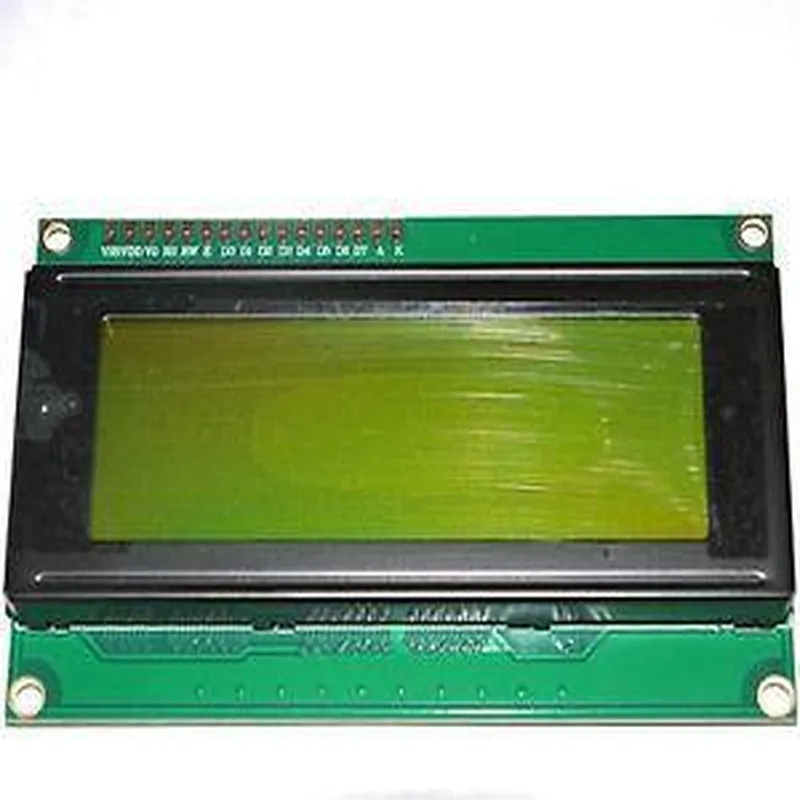
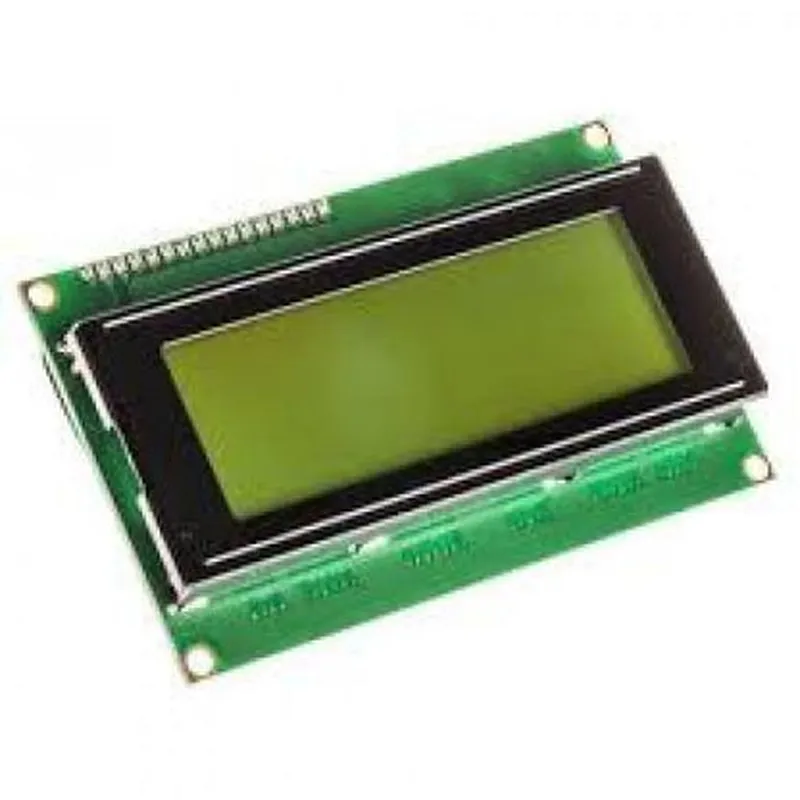
20x4 LCD Module (Green)

Buy Now on Stufin

Display Type

STN (Super-Twist Nematic) LCD


Display Size

20 characters x 4 lines

Character Size

5x8 dots

Display Color

Green backlight

  • Controller and Interface:

Controller Type

HD44780U

Interface Type

8-bit parallel

Communication Mode

Synchronous serial data transfer

  • Power Supply:

Operating Voltage

5V

Power Consumption

Typically 12mA (depending on backlight usage)

  • Physical Characteristics:

Module Size

98.0mm x 60.0mm x 14.5mm

Weight

45g

Pinout

16-pin single-row header (0.1" pitch)

  • Operating Conditions:

Operating Temperature

-20C to 70C

Storage Temperature

-30C to 80C

Humidity

5% to 95% relative humidity (non-condensing)

  • Additional Features:

Wide viewing angle (50)

High contrast ratio (51 typical)

Fast response time (30ms typical)

Applications

The 20x4 LCD Module (Green) is suitable for a wide range of applications, including

IoT devices and sensors

Robotics and automation projects

Home automation systems

Industrial control systems

Medical devices and equipment

consumer electronics and appliances

Technical Resources

For detailed technical information, please refer to the datasheet and user manual provided with the module. Additionally, sample code and libraries for various microcontrollers and development boards are available online to facilitate easy integration and development.

Pin Configuration

  • 20x4 LCD Module (Green) Pinout Explanation and Connection Guide
  • The 20x4 LCD Module (Green) is a widely used display device in IoT and embedded systems. It features a 20 character x 4 line display, with a green backlight. The module has a standard 14-pin interface, which is compatible with most microcontrollers and development boards. Here's a detailed explanation of each pin and a step-by-step guide on how to connect them:
  • Pinout:
  • 1. VSS (Pin 1): Ground Pin
  • Connection: Connect to GND (Ground) of the microcontroller or power supply.
  • Description: This pin is the ground reference for the LCD module.
  • 2. VCC (Pin 2): Power Supply Pin
  • Connection: Connect to VCC (Power Supply) of the microcontroller or power supply (Typically +5V).
  • Description: This pin supplies power to the LCD module.
  • 3. VEE (Pin 3): Contrast Adjustment Pin
  • Connection: Connect to a 10k potentiometer (center pin) and then connect the other two pins of the potentiometer to VCC and GND.
  • Description: This pin is used to adjust the contrast of the LCD display.
  • 4. RS (Pin 4): Register Select Pin
  • Connection: Connect to a digital output pin of the microcontroller (e.g., Arduino's digital pin 12).
  • Description: This pin selects the register (instruction or data) to be written to the LCD module.
  • 5. RW (Pin 5): Read/Write Pin
  • Connection: Connect to a digital output pin of the microcontroller (e.g., Arduino's digital pin 11).
  • Description: This pin determines whether the LCD module is in read or write mode.
  • 6. EN (Pin 6): Enable Pin
  • Connection: Connect to a digital output pin of the microcontroller (e.g., Arduino's digital pin 10).
  • Description: This pin enables the LCD module to receive data or instructions.
  • 7. D0 (Pin 7): Data Bit 0 Pin
  • Connection: Connect to a digital output pin of the microcontroller (e.g., Arduino's digital pin 9).
  • Description: This pin is part of the 8-bit data bus for transferring data to the LCD module.
  • 8. D1 (Pin 8): Data Bit 1 Pin
  • Connection: Connect to a digital output pin of the microcontroller (e.g., Arduino's digital pin 8).
  • Description: This pin is part of the 8-bit data bus for transferring data to the LCD module.
  • 9. D2 (Pin 9): Data Bit 2 Pin
  • Connection: Connect to a digital output pin of the microcontroller (e.g., Arduino's digital pin 7).
  • Description: This pin is part of the 8-bit data bus for transferring data to the LCD module.
  • 10. D3 (Pin 10): Data Bit 3 Pin
  • Connection: Connect to a digital output pin of the microcontroller (e.g., Arduino's digital pin 6).
  • Description: This pin is part of the 8-bit data bus for transferring data to the LCD module.
  • 11. D4 (Pin 11): Data Bit 4 Pin
  • Connection: Connect to a digital output pin of the microcontroller (e.g., Arduino's digital pin 5).
  • Description: This pin is part of the 8-bit data bus for transferring data to the LCD module.
  • 12. D5 (Pin 12): Data Bit 5 Pin
  • Connection: Connect to a digital output pin of the microcontroller (e.g., Arduino's digital pin 4).
  • Description: This pin is part of the 8-bit data bus for transferring data to the LCD module.
  • 13. D6 (Pin 13): Data Bit 6 Pin
  • Connection: Connect to a digital output pin of the microcontroller (e.g., Arduino's digital pin 3).
  • Description: This pin is part of the 8-bit data bus for transferring data to the LCD module.
  • 14. D7 (Pin 14): Data Bit 7 Pin
  • Connection: Connect to a digital output pin of the microcontroller (e.g., Arduino's digital pin 2).
  • Description: This pin is part of the 8-bit data bus for transferring data to the LCD module.
  • Connection Structure:
  • To connect the 20x4 LCD Module (Green) to a microcontroller or development board, follow these steps:
  • 1. Connect VSS (Pin 1) to GND.
  • 2. Connect VCC (Pin 2) to VCC (Power Supply).
  • 3. Connect VEE (Pin 3) to a 10k potentiometer (center pin) and then connect the other two pins of the potentiometer to VCC and GND.
  • 4. Connect RS (Pin 4), RW (Pin 5), and EN (Pin 6) to digital output pins of the microcontroller (e.g., Arduino's digital pins 12, 11, and 10, respectively).
  • 5. Connect D0-D7 (Pins 7-14) to digital output pins of the microcontroller (e.g., Arduino's digital pins 9-2, respectively).
  • Note:
  • Ensure that the microcontroller's digital output pins are configured correctly for the LCD module's data bus.
  • Use a suitable voltage regulator and decoupling capacitors to ensure stable power supply to the LCD module.
  • Follow the LCD module's datasheet and the microcontroller's documentation for specific connection requirements and programming guidelines.
  • By following this guide, you should be able to connect the 20x4 LCD Module (Green) to your microcontroller or development board and start displaying text and data.

Code Examples

20x4 LCD Module (Green) Documentation
Overview
The 20x4 LCD Module (Green) is a widely used display component in IoT projects, offering a 20-character, 4-line display with a green backlight. This module is compatible with various microcontrollers and is ideal for displaying text-based information in a compact format.
Technical Specifications
Display Type: ST7066U LCD Controller
 Display Size: 20 characters x 4 lines
 Backlight Color: Green
 Interface: 8-bit or 4-bit parallel interface
 Power Supply: 5V
 Operating Temperature: -20C to 70C
 Storage Temperature: -30C to 80C
Pinout
The 20x4 LCD Module (Green) has a standard 16-pin interface:
| Pin No. | Pin Name | Function |
| --- | --- | --- |
| 1 | VSS | Ground (0V) |
| 2 | VCC | Power Supply (5V) |
| 3 | VE | Contrast Voltage |
| 4 | RS | Register Select (High: Data, Low: Instruction) |
| 5 | R/W | Read/Write (High: Read, Low: Write) |
| 6 | EN | Enable (High: Enable, Low: Disable) |
| 7-10 | DB0-DB3 | 4-bit Data Bus (Low nibble) |
| 11-14 | DB4-DB7 | 4-bit Data Bus (High nibble) |
| 15 | BLA | Backlight Anode |
| 16 | BLK | Backlight Cathode |
Example Code
### Example 1: Arduino Uno
This example demonstrates how to use the 20x4 LCD Module (Green) with an Arduino Uno board to display a scrolling message.
```cpp
#include <LiquidCrystal.h>
// Define the LCD pins
const int rs = 12;
const int en = 11;
const int d4 = 5;
const int d5 = 4;
const int d6 = 3;
const int d7 = 2;
LiquidCrystal_I2C lcd(rs, en, d4, d5, d6, d7);
void setup() {
  lcd.begin(20, 4); // Initialize the LCD
  lcd.setCursor(0, 0); // Set the cursor to the top-left corner
}
void loop() {
  lcd.print("Hello, World! ");
  delay(500);
  lcd.setCursor(0, 0);
  lcd.print("Scrolling message... ");
  delay(500);
}
```
### Example 2: Raspberry Pi (Python)
This example demonstrates how to use the 20x4 LCD Module (Green) with a Raspberry Pi board to display system information.
```python
import RPi.GPIO as GPIO
import time
# Define the LCD pins
LCD_RS = 7
LCD_EN = 8
LCD_D4 = 25
LCD_D5 = 24
LCD_D6 = 23
LCD_D7 = 18
GPIO.setmode(GPIO.BCM)
GPIO.setup(LCD_RS, GPIO.OUT)
GPIO.setup(LCD_EN, GPIO.OUT)
GPIO.setup(LCD_D4, GPIO.OUT)
GPIO.setup(LCD_D5, GPIO.OUT)
GPIO.setup(LCD_D6, GPIO.OUT)
GPIO.setup(LCD_D7, GPIO.OUT)
def lcd_init():
  GPIO.output(LCD_EN, GPIO.HIGH)
  time.sleep(0.05)
  GPIO.output(LCD_EN, GPIO.LOW)
  time.sleep(0.05)
def lcd_write(data):
  GPIO.output(LCD_RS, GPIO.HIGH)
  GPIO.output(LCD_D4, GPIO.HIGH if (data & 0x10) else GPIO.LOW)
  GPIO.output(LCD_D5, GPIO.HIGH if (data & 0x20) else GPIO.LOW)
  GPIO.output(LCD_D6, GPIO.HIGH if (data & 0x40) else GPIO.LOW)
  GPIO.output(LCD_D7, GPIO.HIGH if (data & 0x80) else GPIO.LOW)
  GPIO.output(LCD_EN, GPIO.HIGH)
  time.sleep(0.05)
  GPIO.output(LCD_EN, GPIO.LOW)
  time.sleep(0.05)
lcd_init()
while True:
  lcd_write(0x80)  # Set cursor to top-left corner
  lcd_write(0x01)  # Clear display
  lcd_write(0x80 + 0)  # Set cursor to top-left corner
  lcd_write(ord('U'))  # Display 'U'
  lcd_write(ord('p'))  # Display 'p'
  lcd_write(ord('t'))  # Display 't'
  lcd_write(ord('i'))  # Display 'i'
  lcd_write(ord('m'))  # Display 'm'
  lcd_write(ord('e'))  # Display 'e'
  lcd_write(0x80 + 1)  # Set cursor to second line
  lcd_write(ord('R'))  # Display 'R'
  lcd_write(ord('a'))  # Display 'a'
  lcd_write(ord('s'))  # Display 's'
  lcd_write(ord('p'))  # Display 'p'
  lcd_write(ord('b'))  # Display 'b'
  lcd_write(ord('e'))  # Display 'e'
  lcd_write(ord('r'))  # Display 'r'
  lcd_write(ord('r'))  # Display 'r'
  lcd_write(ord('y'))  # Display 'y'
  time.sleep(1)
```
Please note that these examples are for demonstration purposes only and may require modifications to suit your specific project requirements.